Destiny Rings Guide
From download toreal-world connection.
Set up your profile, connect your ring, choose how you want to meet people, and learn what every part of Destiny Rings does.
Tell Destiny Rings who you are looking to meet.
Your profile and preferences power compatibility. Complete your information before relying on nearby discovery so Destiny Rings knows which real-world connections are relevant to you.
Create your profile
Add your basic profile information and profile photo.
Set your preferences
Configure who you want to meet and the preferences used for compatibility.
Add interests and lifestyle details
More complete profiles give Destiny Rings more context when determining compatibility.

Pair the wearable with your phone.
Your Destiny Ring connects to the companion app through Bluetooth. Once connected, the app and wearable can work together during real-world interactions.
Make sure Bluetooth is enabled on your iPhone.
Open the Home screen and tap Connect Ring.
Select your Destiny Ring when it appears.
Confirm the app shows the ring as connected before testing ring interactions.
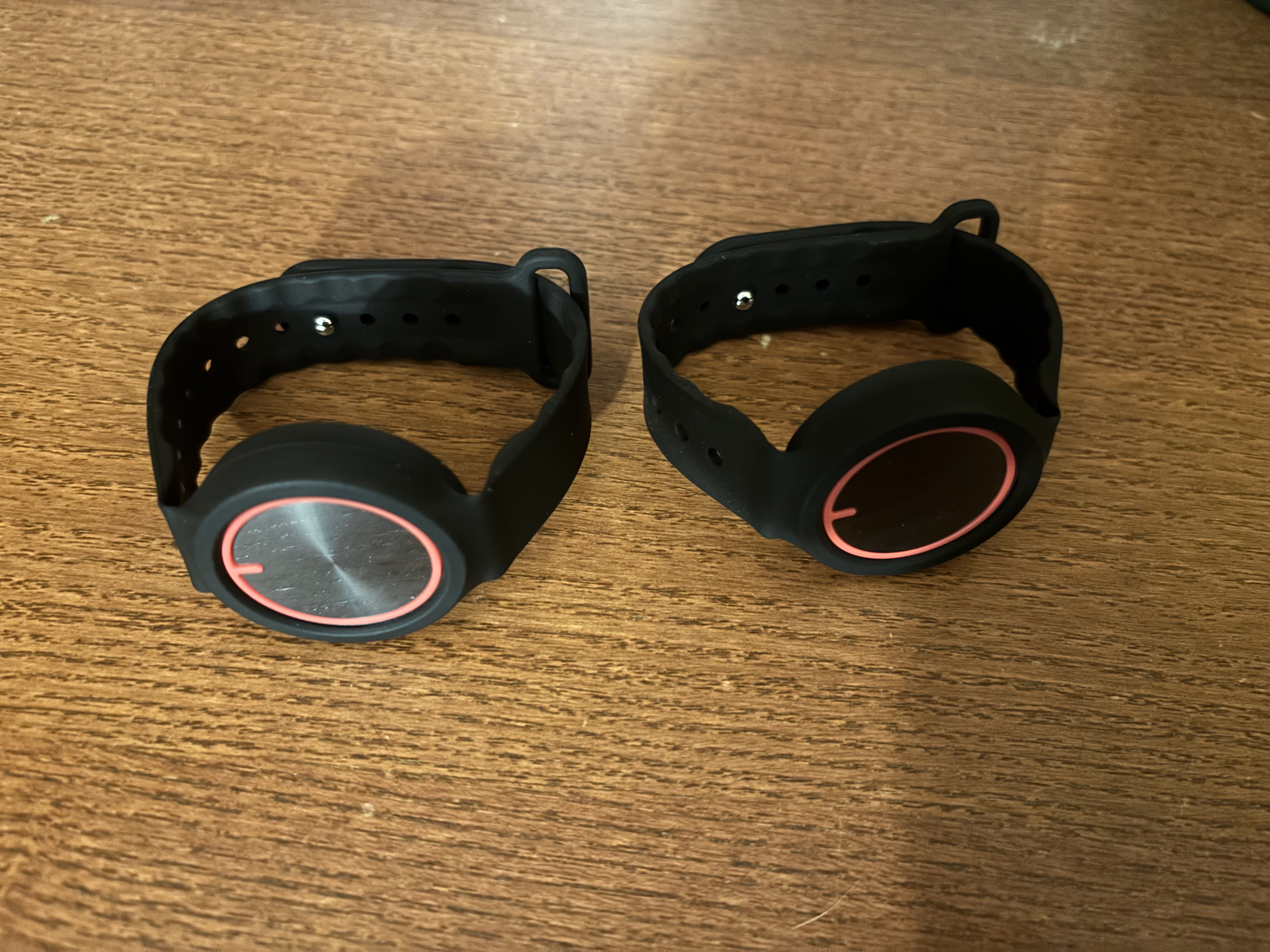
Using a B10 wristband?
Press the large circular button on top to turn it on. To turn the wristband off, press and hold the same button for approximately 1.5 seconds.

03 • Choose Your Mode
Choose what kind of connection you want.
Destiny Rings supports Dating, Social, and Networking experiences.
Dating
Discover nearby people who fit your dating preferences and compatibility criteria.
Social
Use shared interests and social intent to discover people who may be worth meeting as friends.
Networking
Discover people around you who may be relevant professionally, including at events, conferences, bars, and social spaces.
Understanding Compatibility
What does your Match Score mean?
Destiny Rings calculates compatibility using your profile and preferences within your active mode. Dating, Social, and Networking can each evaluate compatibility in the context of the type of connection you're looking for.
<60
No Match
Below the compatibility threshold.
60–69
Good
A good compatibility match.
70–79
Great
Strong compatibility between you.
80–89
Elite
Exceptionally high compatibility.
90–99
Match Made in Heaven
The highest compatibility tier.
What does the ring light mean?
When you touch another Destiny Ring, the blue LED pattern reflects your compatibility tier.
Three deliberate blinks indicate that the compatibility threshold was not met.
A slow repeating pulse indicates a Good compatibility match.
A faster repeating pulse indicates a Great compatibility match.
A solid blue light indicates an Elite compatibility match.
A rapid celebratory flutter and blink pattern indicates a Match Made in Heaven.
On the first touch: the LED gives you a private compatibility cue. If both people intentionally touch again, the second touch can confirm the match and repeats the corresponding tier pattern for longer.
Some experiences can supersede the standard Match Score.
Ambient Signals, FateMatch, and Speed Dating use their own interaction rules. When one of these experiences is active and its conditions are met, it can take precedence over the standard compatibility-based interaction.
See who is active around you.
Go Live is the app-based nearby experience. When you activate it, Destiny Rings can show other active users nearby within the supported proximity range.
It is useful when you want to actively discover people around you, including while testing or when your ring is not being used.

Ring Interaction
Notice. Check. Decide.
01
Nearby signal
When the system identifies an eligible nearby interaction, your ring can provide a non-identifying cue such as a buzz.
02
First touch
Touching rings can move the interaction into the compatibility stage and provide additional feedback.
03
Second touch
If both people want to continue, a second intentional interaction can turn the real-world moment into a match.

Sometimes fate gets a vote.
FateMatch gives users a secret daily number. The mode adds a game-like layer to real-world interactions.
When two participating users interact and their FateMatch numbers align, the experience can trigger the corresponding FateMatch behavior and identify the resulting match as coming from FateMatch.
Turn a social space into quick real-world rounds.
Speed Dating is designed for short interactions with nearby participants. The app pairs users for a limited round so the interaction happens face-to-face instead of through a swipe feed.
1. Enter the Speed Dating experience.
2. Get paired with another participating user.
3. Meet during the timed round.
4. Use the ring interaction to confirm the connection when there is mutual interest.


Give shared interests their own signal.
Circles are shared signals built around interests, identity, or vibe. They add another layer of context beyond general compatibility.
Signal Store
Browse signals that can be added to your account.
Signal Library
Manage the signals already associated with your profile.
Active slots
Choose which signals are active for your real-world experience. Your available slots determine how many Circle signals you can have active at once.
Earn an extra slot through referrals
Refer a friend to Destiny Rings and earn an additional Circle slot, giving you more room to activate the signals that matter to you.
Ambient Signals
When enabled, assigned Circle cues can provide recognizable feedback for nearby overlap instead of relying only on the standard proximity cue.
The real-world moment doesn't have to end there.
Successful connections appear in the Matches tab, where you can see who you matched with and the context associated with the connection.
Open the match to continue the conversation in chat after the in-person interaction.


Control how Destiny Rings behaves around you.
Settings gives you control over ring-related preferences and app behavior.
This is also where Ambient Signals can be enabled when you want active Circle cues to participate in nearby interactions.
Troubleshooting
Something not working?
My ring won't connect.
Confirm Bluetooth is enabled, keep the ring near your phone, and retry Connect Ring from the Home screen.
I don't see another user nearby.
Confirm both users are active in the correct mode, are within the supported nearby range, and have compatible settings where applicable.
The ring didn't buzz.
Check that the ring is connected and that the relevant proximity or signal settings are enabled. Compatibility and mode rules can also affect whether an interaction produces a cue.
I changed modes.
Your active Dating, Social, or Networking mode changes the context Destiny Rings uses for discovery and compatibility.